Gaming on Linux in 2026: Steam, Proton & Heroic Games Launcher
Linux gaming is no longer a science project. Steam handles a huge part of the library through Proton, while Heroic brings Epic, GOG and Amazon games into one native launcher. Here is how to set up both without turning your evening into a Wine configuration ritual.

The short answer is yes, you can play a surprisingly large part of the PC gaming library on Linux in 2026. The longer answer is that Linux does not magically make every Windows game compatible. Steam uses Proton to translate the Windows game environment into something Linux can run, while Heroic provides a native interface for Epic Games Store, GOG and Amazon libraries and can use Wine or Proton underneath. The result is much better than the old stereotype of Linux gaming being three hours of terminal commands followed by a broken game.
The goal is not to make Windows games feel native. The goal is to make you forget they are running through a compatibility layer.
Get the boring stuff right first
Use a reasonably current Linux distribution and keep your graphics drivers updated. Steam and Proton do most of the compatibility work, but your GPU driver is still part of the stack. If you use NVIDIA, make sure you are running the appropriate proprietary driver for your distribution. AMD and Intel users generally get their graphics stack through the distribution's Mesa packages. Do not start troubleshooting a game before checking that your GPU driver is actually working.
You also do not need to install Wine, Winetricks, DXVK or a collection of random compatibility scripts before opening Steam. Proton already bundles the pieces Steam needs for supported games. Valve explicitly recommends that most users use the Proton versions provided by the Steam client itself.
Steam: the easy way
If the game is already in your Steam library, start here. Steam Play uses Proton to run Windows-only games on Linux, and Steam can select a compatible Proton version automatically. You do not need to understand Wine prefixes or manually build Proton just to play a game.
Install Steam
Install Steam using the package recommended for your distribution or through its software centre. Once Steam is installed, sign in normally. Your existing library will appear just as it does on Windows.
Arch Linux
sudo pacman -S steamOn other distributions, use the distribution's current Steam package rather than copying an Arch command and hoping the operating system takes the hint. Steam is also available through several software centres and packaging formats, depending on the distribution.
Enable Steam Play
Open Steam Settings and go to Compatibility. Enable Steam Play for supported titles. If you want Steam to attempt Proton for games that do not have an official compatibility designation, enable the option that allows Steam Play for other titles as well.
For most people, leave the Proton version on the default selected by Steam. Do not immediately install five different Proton builds because a Reddit comment from 2023 told you that Proton-GE fixes everything. Different games can benefit from different versions, but changing the runner should be troubleshooting step two, not step one.
Install a Windows game
Open your Steam library and pick a Windows game. If Steam supports it through Proton, the normal Install button is enough. Install the game to your usual Steam library and launch it normally.
When a game does not launch
Do not start changing random launch options. First check whether the game is known to work. ProtonDB is useful here because it collects community reports for individual games. Look for recent reports using hardware and Proton versions similar to yours rather than trusting one ancient green checkmark.
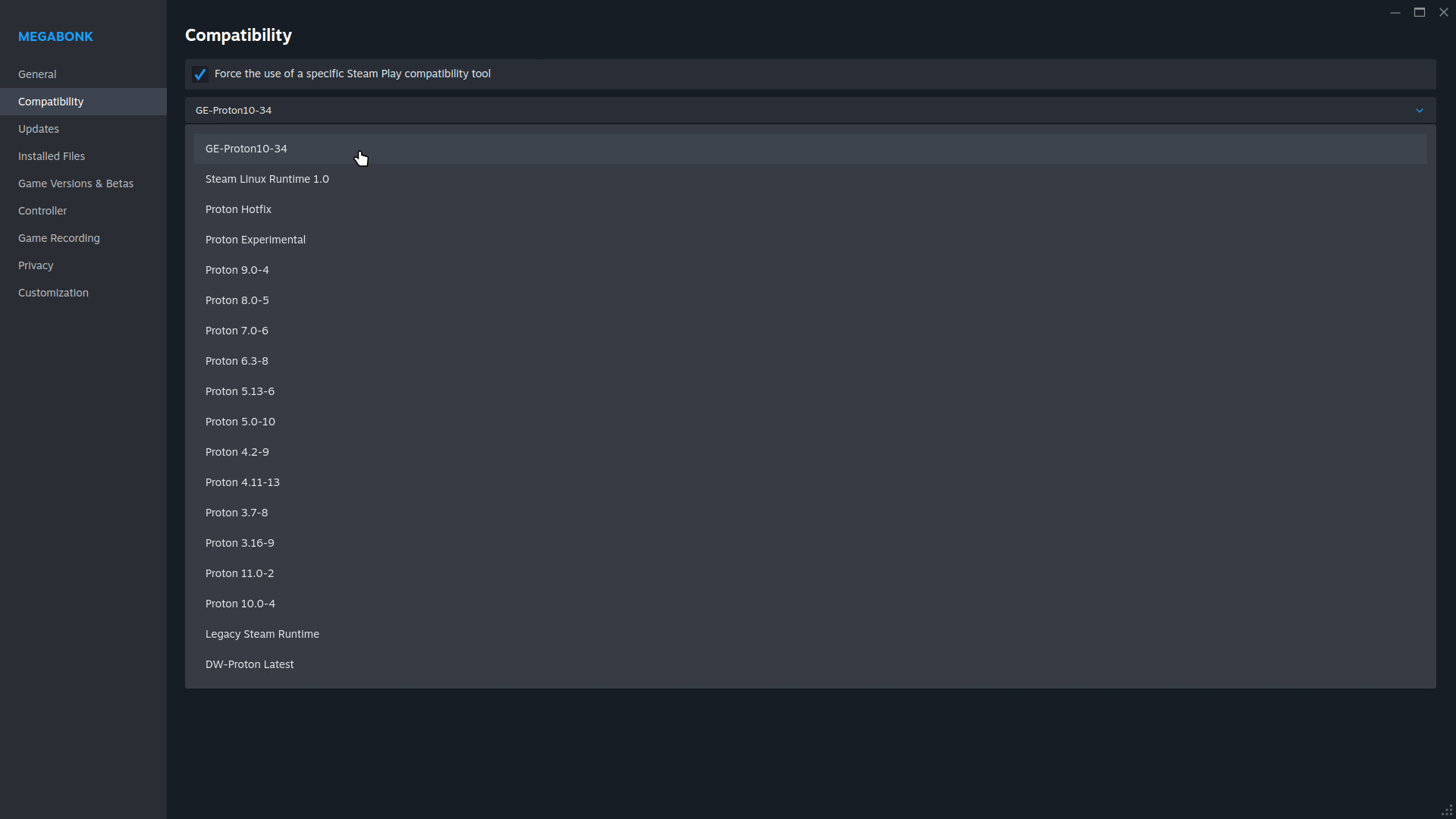
https://www.protondb.com/If the reports suggest another Proton version, open the game's Properties, go to Compatibility, enable the option to force a specific Steam Play compatibility tool, and select the recommended version. Try one version at a time. Changing six variables simultaneously is an excellent way to learn absolutely nothing about the original problem.
Manage Proton versions with ProtonPlus
If you want an easier way to install and manage alternative compatibility tools such as Proton-GE, ProtonPlus is a useful companion. Instead of downloading releases manually and figuring out where they belong, ProtonPlus provides a graphical interface for managing compatibility-tool versions used by supported launchers.
You do not need ProtonPlus for normal Steam gaming. Steam already manages its own Proton releases. ProtonPlus becomes useful when a specific game works better with Proton-GE or when you want to keep several compatibility-tool versions available without manually managing files.
https://flathub.org/apps/com.vysp3r.ProtonPlusOpen ProtonPlus, select the launcher you use, and install the compatibility-tool version you need. After installation, the new version should appear in the launcher's compatibility settings. For Steam, you can then select it from a game's Properties → Compatibility menu when you specifically need it.
Heroic Games Launcher: Epic, GOG & Amazon
Steam is great when your games are on Steam. The problem is that PC game libraries have somehow evolved into several competing storefronts, because apparently one launcher was too simple. Heroic Games Launcher is the cleaner Linux option when your library lives on Epic Games Store, GOG or Amazon Games.
Heroic is open source and supports Epic, GOG and Amazon accounts. On Linux it can run Windows games using Wine or Proton, download different compatibility tools, manage installations and even show ProtonDB and Steam Deck compatibility information.
Install Heroic
The Flatpak is the simplest choice for most Linux distributions. Heroic also provides distribution-specific packages, an AppImage and other releases. If your distribution already integrates Flathub into its software centre, search for Heroic Games Launcher there.
Flatpak
flatpak install flathub com.heroicgameslauncher.hglHeroic's official documentation currently recommends the Flatpak for a straightforward Linux installation, while its project provides packages for distributions including Debian/Ubuntu, Arch and Fedora. Use the package format that fits your system rather than mixing installation methods unnecessarily.
Connect your game stores
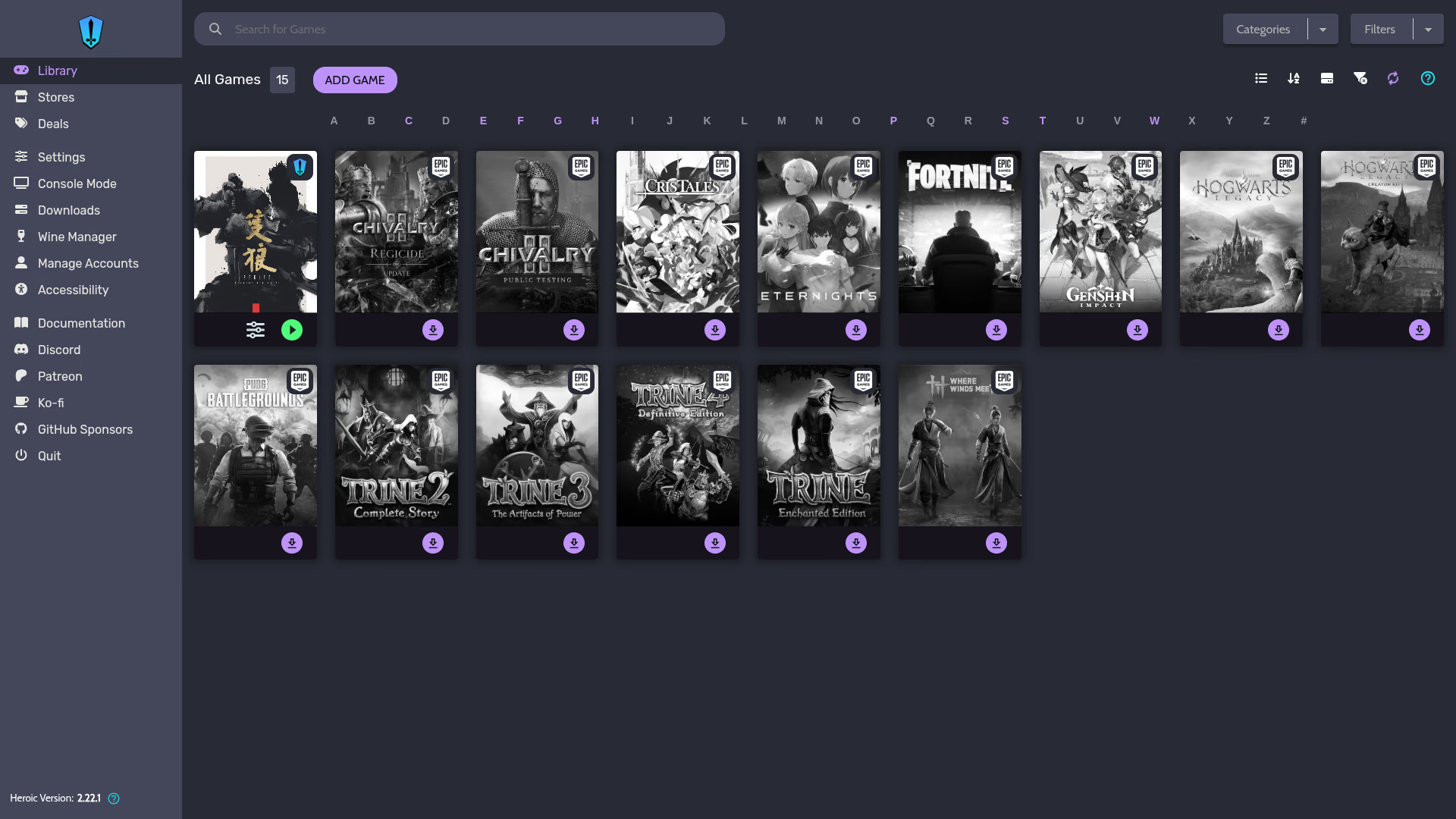
Open Heroic and log into the store that owns your games. You can connect Epic, GOG and Amazon accounts from Heroic's login interface. Once authenticated, your library appears inside Heroic without requiring the Windows storefront client.
Set up Proton-GE
Heroic gives you control over the compatibility tool used by each game. For a simple setup, open Settings, go to the experimental features area and enable the UMU Proton runtime option if it is available in your current Heroic version. Then open Wine Manager and install a current Proton-GE release.
Proton-GE is a community build based on Valve's Proton with additional patches and fixes. You do not need to use it for every game. Heroic can manage the compatibility tools for you, and the correct choice can vary from game to game.
Install your game
Select a game in your Heroic library and choose Install. Pick a sensible location with enough free space. When Heroic asks for the Wine or Proton version, start with the current Proton-GE version you installed. For Windows-only games, Heroic's Linux quick-start documentation generally recommends installing the Windows version rather than assuming an old native Linux build will be better.
The prefix is the important bit that newcomers often miss. Think of it as the game's private Windows environment. Dependencies, registry data and other Windows-specific files live there. Keeping games in sensible, separate prefixes means one game's weird dependency should not have to become everyone else's problem.
Launch it
Once the installation finishes, launch the game from Heroic. If it works, stop touching things. This is an underappreciated Linux gaming technique. A working configuration does not need to be optimized simply because a menu contains 47 settings.
Which one should you actually use?
For a Steam game, use Steam. There is very little reason to add another launcher just to run something Steam already manages through Proton. For Epic, GOG or Amazon games, Heroic is usually the cleaner experience because it replaces the need to install and maintain the original storefront client on Linux.
The game still refuses to cooperate
Start with the least destructive fixes. Confirm the GPU driver is working. Check the game's current ProtonDB reports. Try the default Proton version before switching runners. If you are using Heroic, try a current Proton-GE version. Verify the game files if the launcher supports it. Only after that should you start looking at launch options, environment variables or game-specific workarounds.
If the game opens but performs badly, separate compatibility from performance. A game running at 20 FPS is not necessarily failing because of Proton. Check GPU utilization, CPU utilization, resolution, shader compilation behaviour and the game's graphics settings first. Proton has overhead, but the performance story varies dramatically by game and hardware.
What I would install on a fresh Linux gaming machine
Keep it simple: current GPU drivers, Steam for the Steam library, Heroic for Epic/GOG/Amazon, and a current Proton version managed by the launchers. Add Proton-GE when a particular game needs it. Use ProtonDB when something breaks. Do not install every Linux gaming tool you find in a YouTube description just because it exists.
If Steam can launch the game, let Steam launch it. If Epic owns it, let Heroic deal with Epic. Your operating system does not need twelve launchers to prove a point.